Presentation :
Marvelapp helps you with wireframe, design and prototype with it’s intuitive design and prototyping tools. Instantly generate design specs and connect integrations that power up any workflow. From low to high-fidelity.
Here we will show you how to create a prototype for a mobile Marvel application. You need to create an account to be able to start the tutorial.
Creation of project
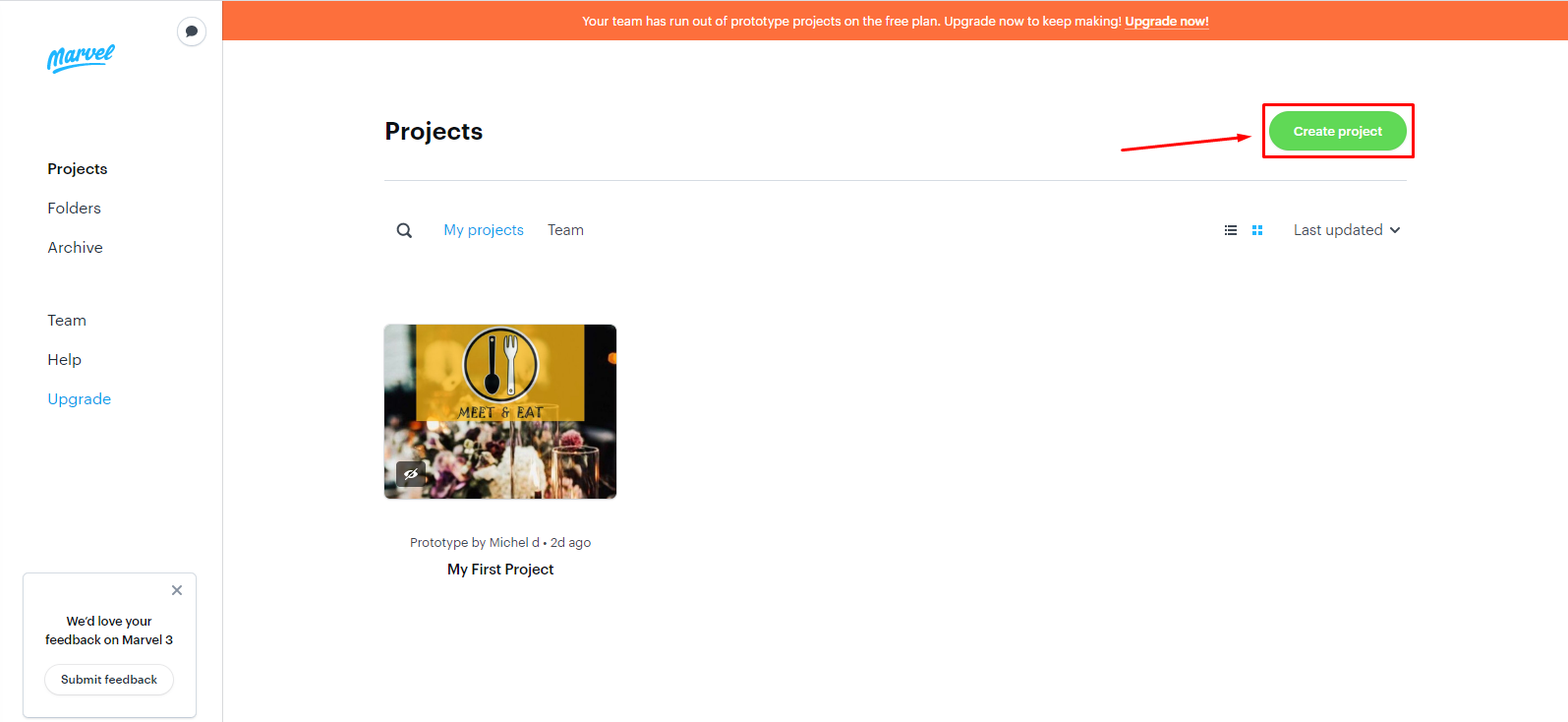
To create a project you have to click there
Reminder: you can only create one project per account with the free version
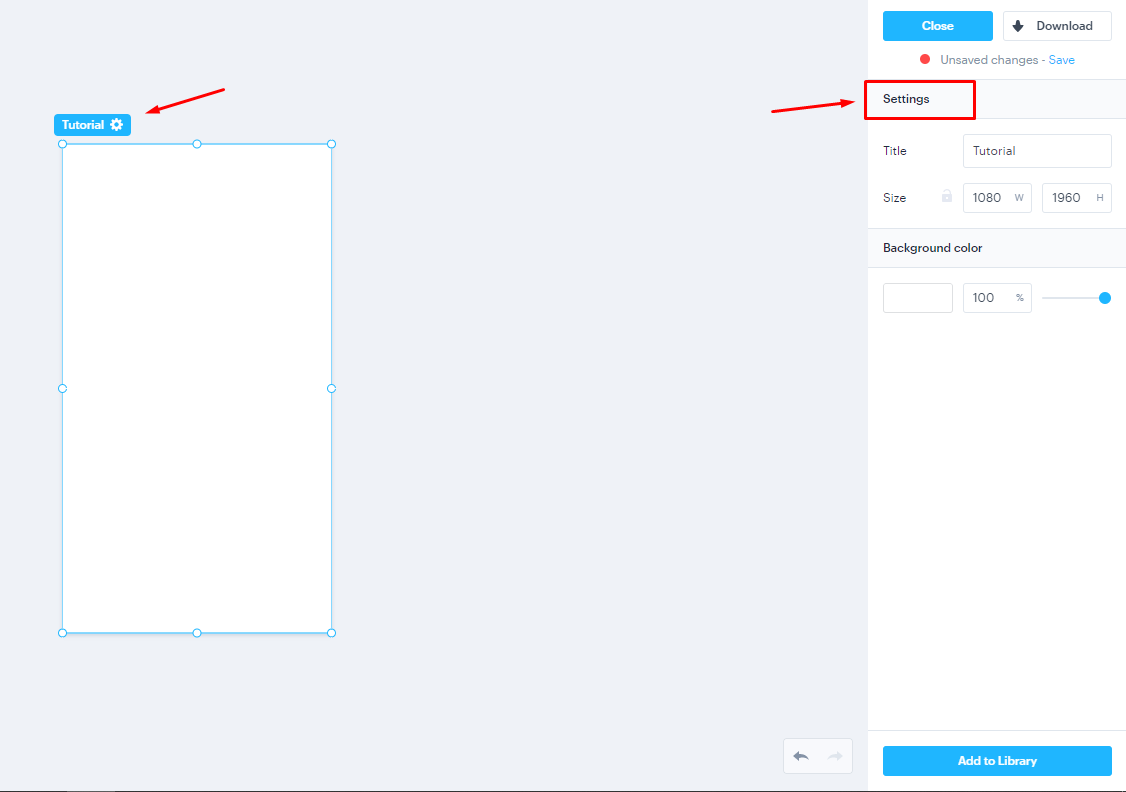
Change layout settings
Here you can change de title and the size of the layout
Construction elements
Rectangle: by clicking in the green rectangle you can add a new rectangle to the project, also you can change its settings by clicking over the rectangle for example the opacity, the borders, color…etc.

Circle: by clicking in the yellow circle you can add a new circle to the project, also you can change its settings by clicking over the circle for example the opacity, the borders, color…etc.
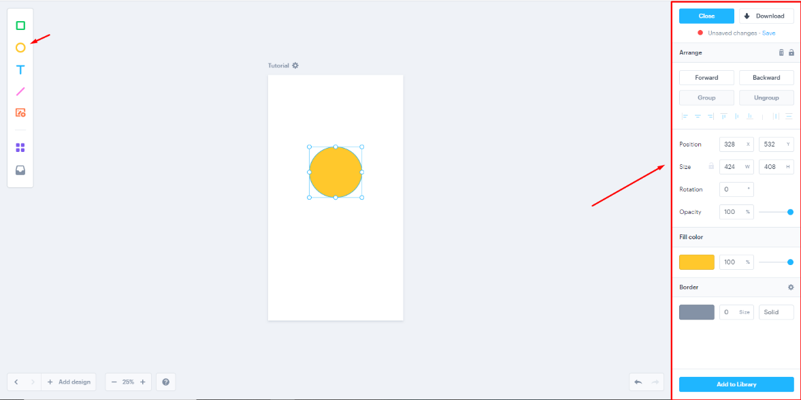
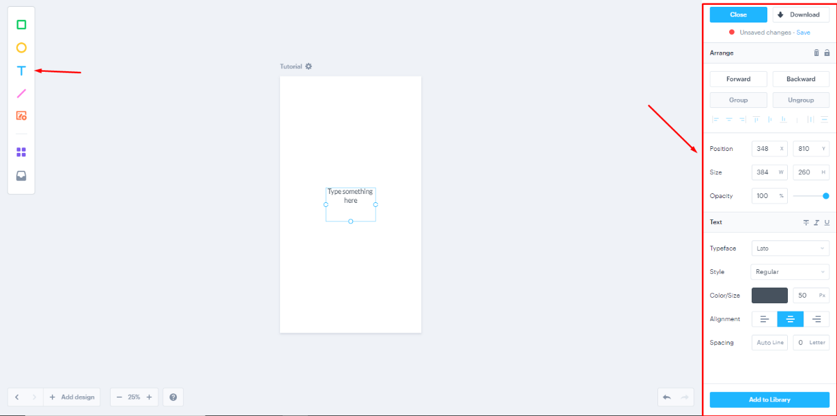
Textbox: by clicking in the T you can add a Textbox to the project, also you can change its settings by clicking over the textbox for example the size, the font, color…etc.
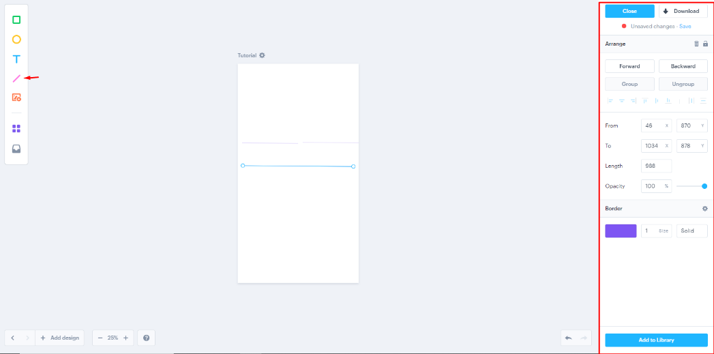
Line: by clicking in the line you can add a line to the project, also you can change its settings by clicking over the line, for example the opacity, the borders, color, the length …etc.
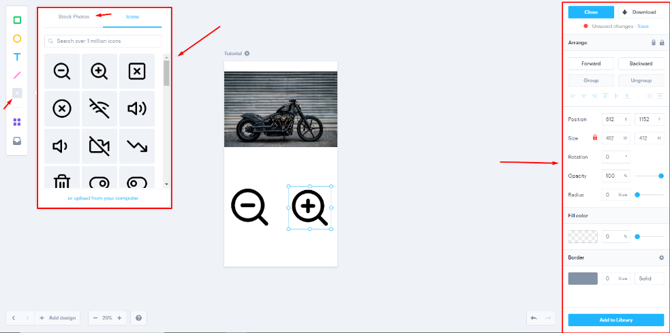
Picture: by clicking in this option you can add pictures and icons for your application, there you can select the pictures and icons you want to use , also you can add your own pictures from your computer, here you can do for example the position, size, borders…etc.
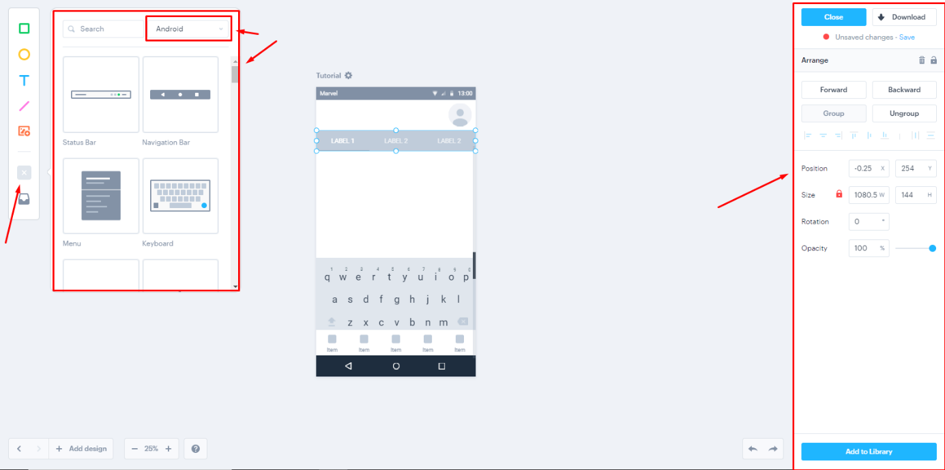
Four squares: here you can search for templates for mobile you can use for your application, also you can change the template for different devices (android, web, iPad..etc.), you can change the opacity, size and arrange of the template.
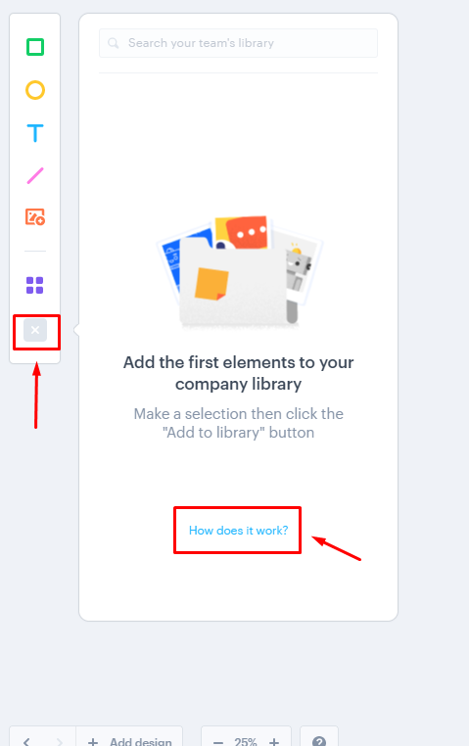
Library: here you can create your own library of templates you can use whenever you want so you don’t need to create it a second time.
Add pages
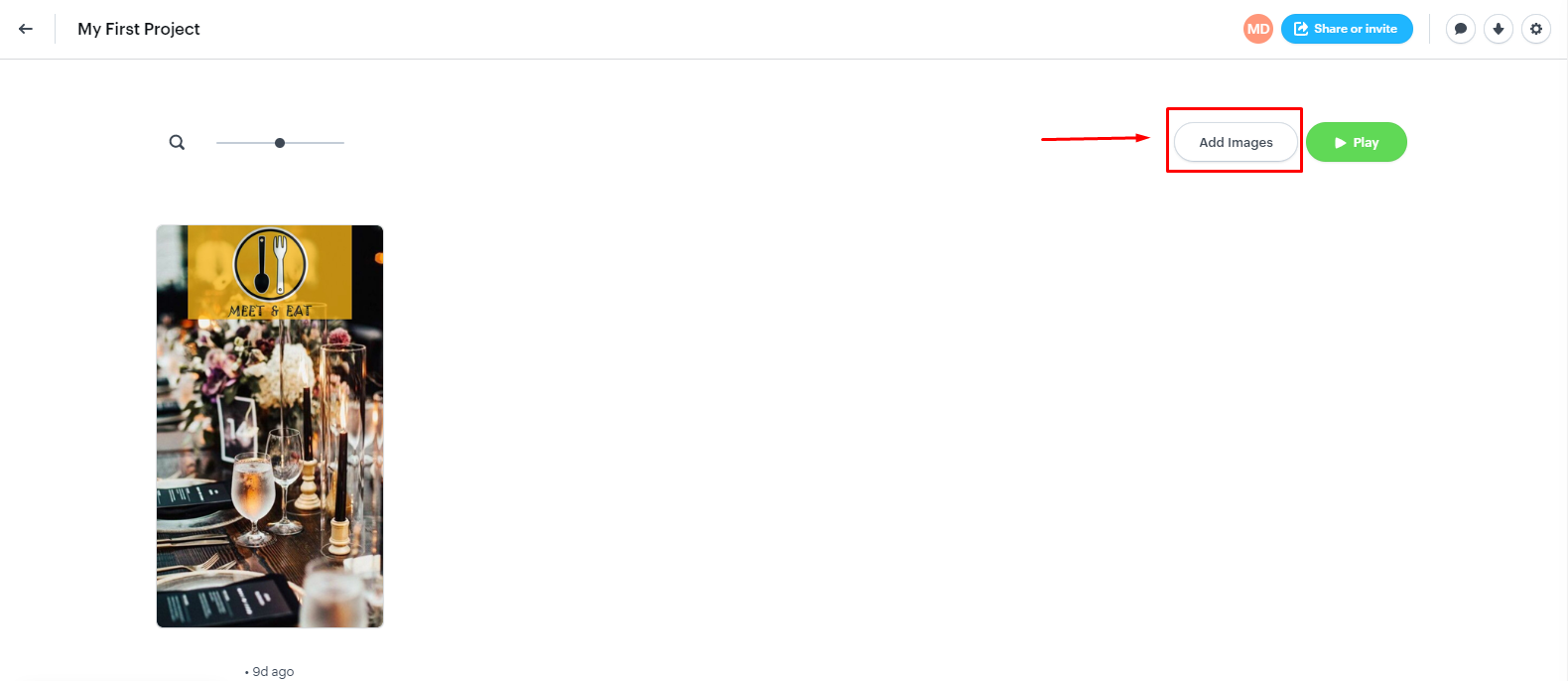
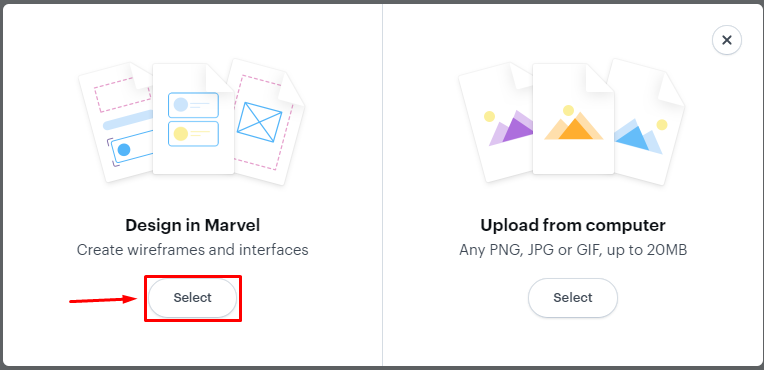
Here you can add all the pages that your application will need
Transition
In this page you can change the transitions so your application can look a little more realistic, here you have the timer option so you can change the charge time of your application.
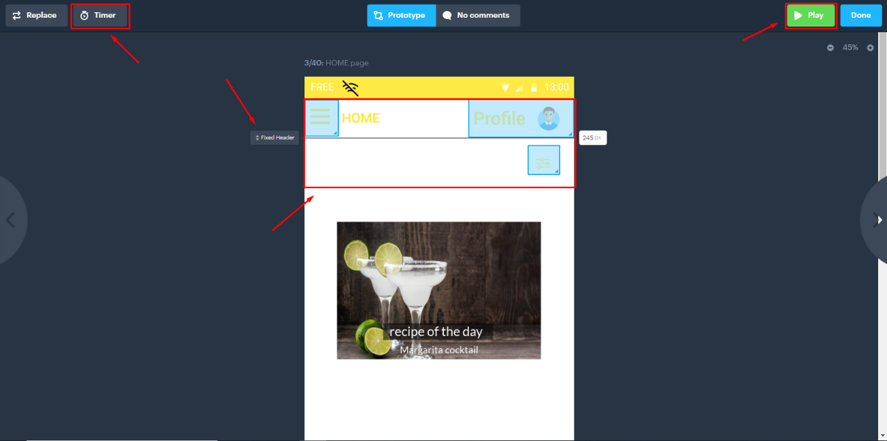
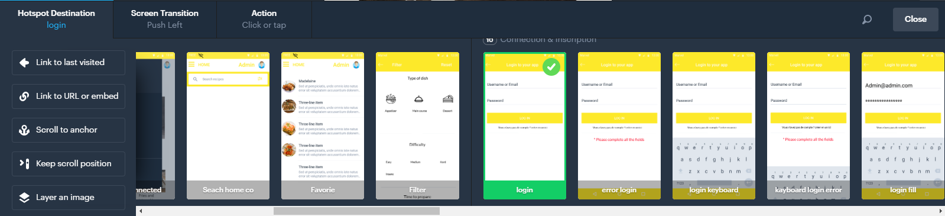
You can create spaces where you can interact with the application with your mouse, by clicking in one of these places you can give it a property.
Here you can choose the page your action will take you.
Here you can choose the type of transition.
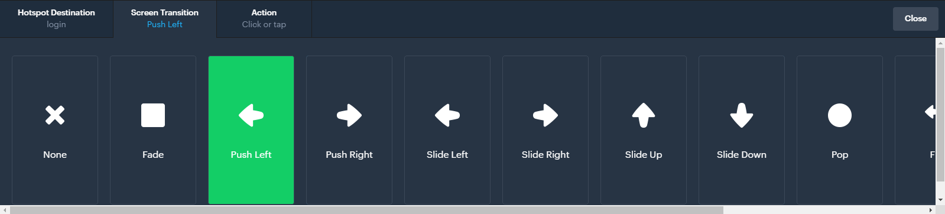
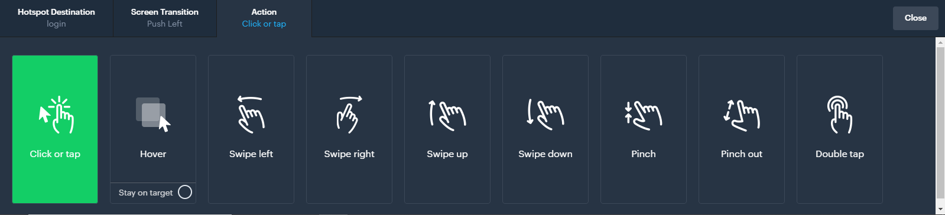
Here you can choose the action the user most do so that the interaction can be activated.